
Use a listing for a housing opportunity people can ask about or pursue. Total housing capacity belongs in the organization's Inventory, separately from listings.
Open the listing editor
- Sign in and choose My listings in the partner workspace, then New Listing. Alternatively, open Organizations, select the correct organization, open Listings, and choose New Listing.
- To update an existing listing, choose its Edit link. If your organization or listing is missing, ask PCHC to check your access.
Complete the six sections
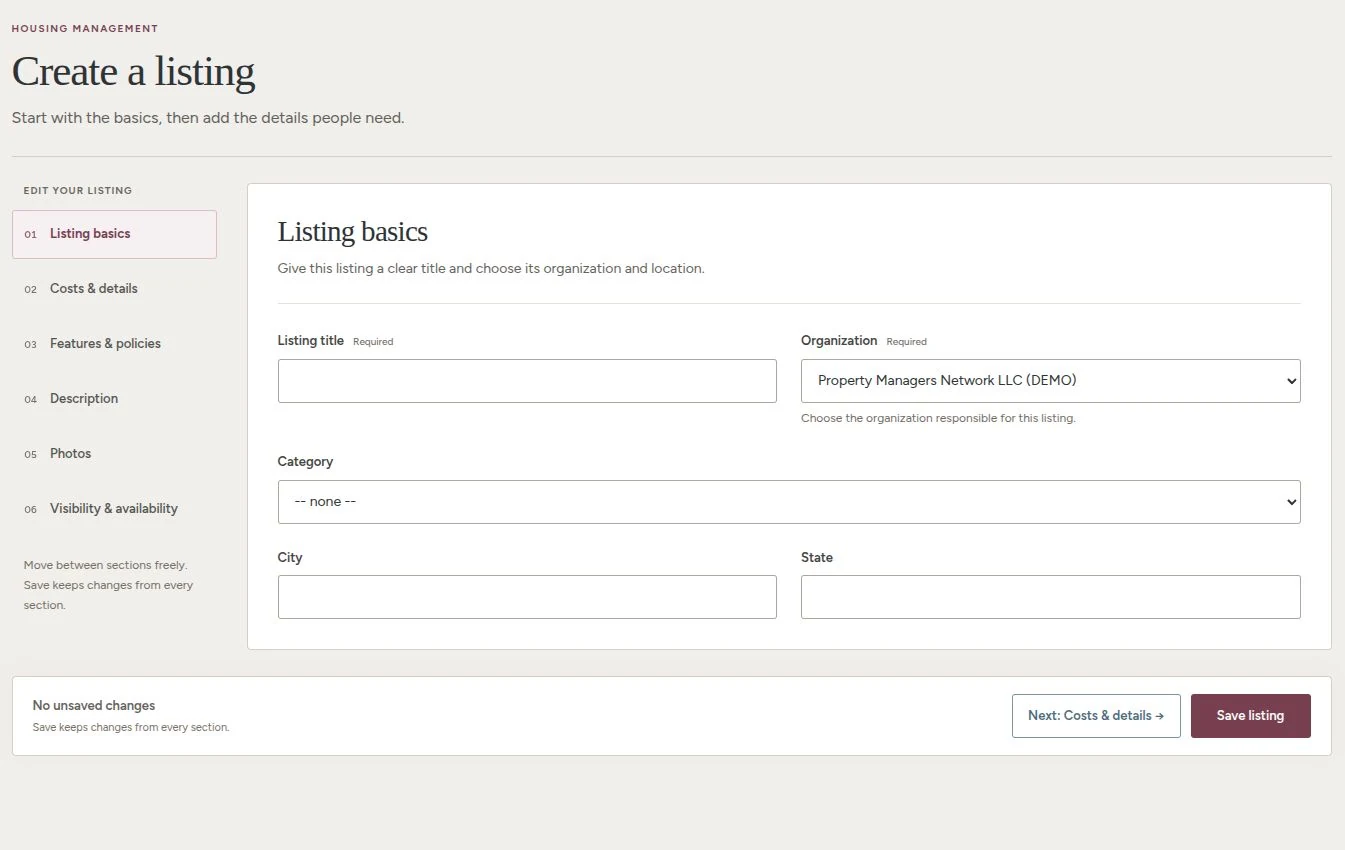
- Listing basics: enter the required Listing title, select the responsible Organization, and choose the appropriate Category. Add the city and state.
- Costs & details: enter known bedrooms, bathrooms, floor area, monthly rent, deposit, and available-from date. Leave unknown optional values blank.
- Features & policies: open the relevant groups and select only choices that apply. Groups cover screening, amenities, lease terms, pets, and school district. Leave unspecified choices unset.
- Description: write the Public description. Explain the housing, relevant requirements, costs, and how to contact the provider or apply. Add listing photographs in Photos.
- Photos: choose Add photos or drag files into the drop area. Accepted formats are JPG, PNG, GIF, and WEBP, with a maximum of 20 MB per photo. Use Move earlier, Move later, and Remove to organize them. Use photographs you have permission to publish.
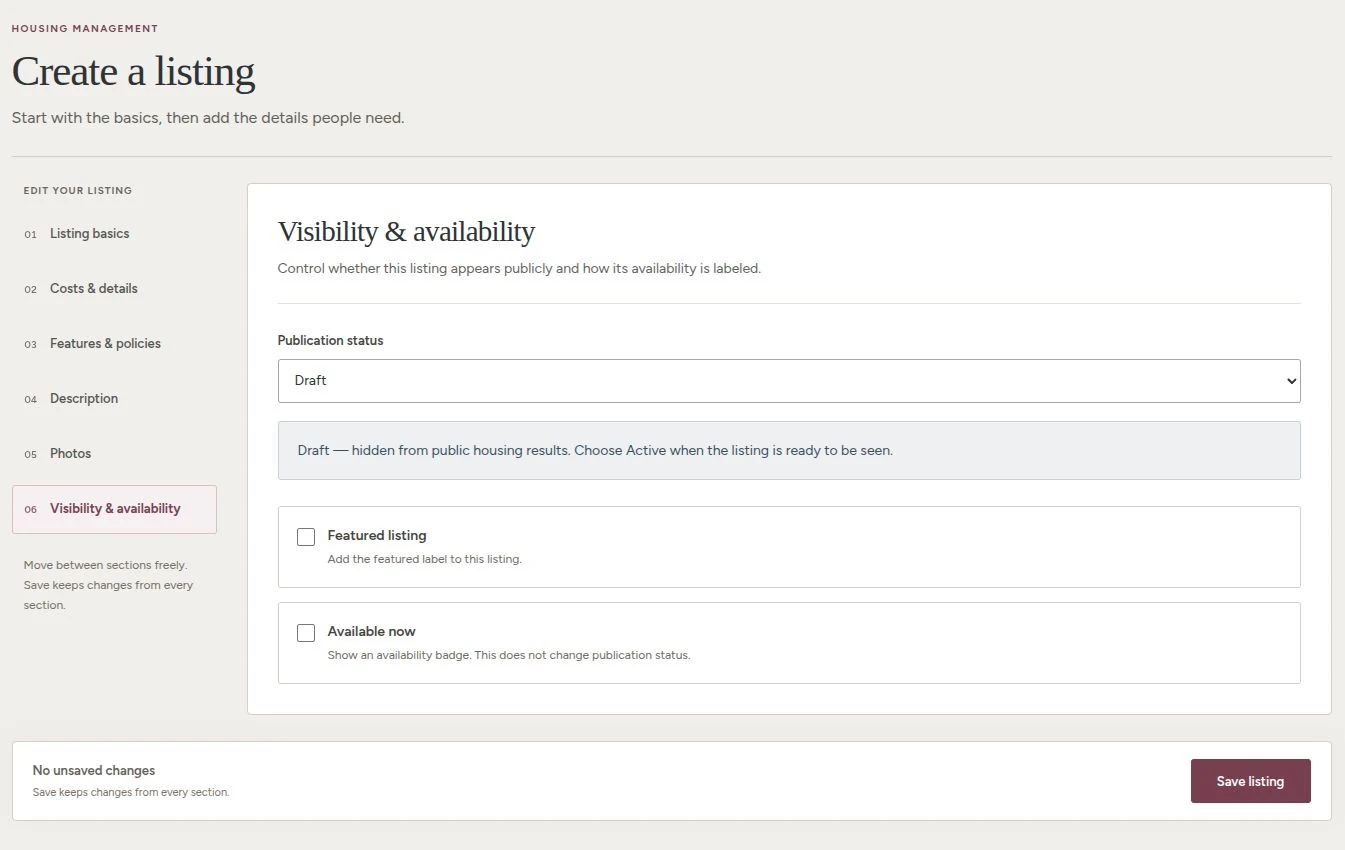
- Visibility & availability: choose the publication status and set the availability badge as described below.
You can move freely between sections. Save listing saves changes from every section together.
View the current editor sections
Choose the correct visibility
- Draft keeps a listing out of public housing results while you prepare it.
- Active is for a listing ready to appear publicly.
- Pending is also included in public housing results. Use Draft if the listing should remain private.
- Closed removes a listing from public housing results when the opportunity has ended.
Available now adds an availability badge; it does not change publication status. Check it only when the opportunity is currently available. Featured listing adds a featured label when appropriate.
View visibility and availability controls
Save and check
- Review the information and choose Save listing. Follow any validation messages.
- In the listings manager, confirm the listing appears with the intended status, then check its public details if it should be visible. If the editor remains open after saving, use Back to listings to return to the manager.
- Keep the listing current. In My listings, changes to category, status, featured, and availability in the results save immediately. Open Edit for the full editor.
My listings can also include listings from organizations where you are a verified primary contact. Select that option and choose Apply filters when needed.
Related: Requesting partner access and Browsing public housing listings.
Reviewed October 29, 2026. Screen labels and available tools may vary with your access.